
Web Stats
To access the web stats for a specific site, you will need to login to the site as an admin user then click the Analytics button in the dashboard (this is located at the bottom in the Admin Modules section). The first page you'll be taken to is the pages stats screen which shows the hits and visits to your site, along with stats for pages that have been visted.
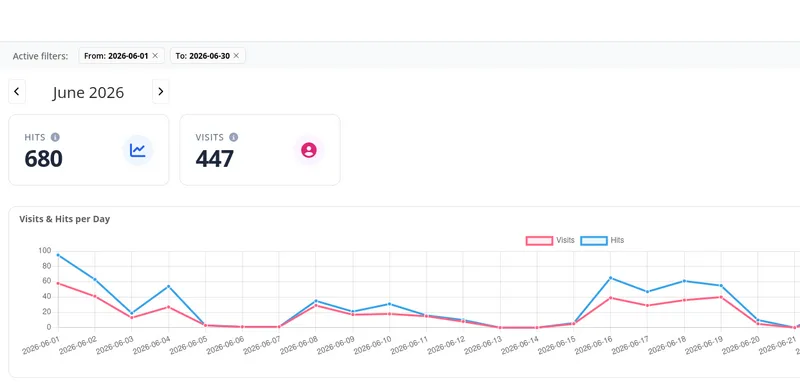
The Analytics screen is divided in to different sections:
-
Pages stats
A general web stats page for viewing website hits and visits.
-
Pages stats log
This lists which pages have been visited and the date they were visited.
-
File stats
This lists files that have been downloaded and the date they were downloaded.
-
Advanced Analytics
This is for monitoring specific pages to see if someone has been downloading a number of files in a short space of time.
To set this reporting up for a page, from the dashboard you need to go to Sites. From the list of pages, find the page you wish to monitor and click the button with the three dots to the right hand side of it. Click on Page Information then click the Ofsted detection slider to turn it on then click the Save button.